安装deepseek

1.安装ollama

1
# 下载ollama
curl -fsSL https://ollama.com/install.sh | sh
# 下载模型
ollama run deepseek-r1:1.5b
ollama run deepseek-r1:7b
ollama run deepseek-r1:8b

2.设置ollama监听

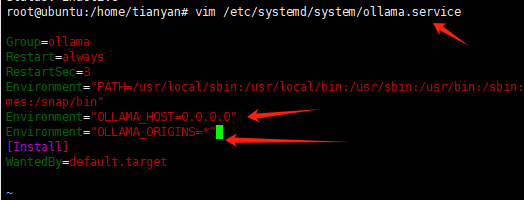
# 1. 编辑 ollama.service
vim /etc/systemd/system/ollama.service
# 2.在 [Service] 部分,Environment下面添加:
Environment="OLLAMA_HOST=0.0.0.0"
Environment="OLLAMA_ORIGINS=*"
# 3.重新加载 systemd 并重启 Ollama:
systemctl daemon-reload
systemctl restart ollama

其他相关命令:

# 查看 Ollama 运行状态:
systemctl status ollama
# 查看显存占用:
nvidia-smi
apt-get install nvtop -y
nvtop

Docker安装ipsec

docker run --name ipsec-vpn-server  --env-file /root/vpn.env --restart=always -v ikev2-vpn-data:/etc/ipsec.d \-v /lib/modules:/lib/modules:ro -p 500:500/udp -p 4500:4500/udp -d --privileged registry.home.tymas.cn:8000/hwdsl2/ipsec-vpn-server:latest

.env 配置文件,放在root用户根目录下 /root/vpn.env

下面高亮部分是要自己设置的

# Note: All the variables to this image are optional.
# See README for more information.
# To use, uncomment and replace with your own values.

# Define IPsec PSK, VPN username and password
# - DO NOT put "" or '' around values, or add space around =
# - DO NOT use these special characters within values: \ " '
VPN_IPSEC_PSK=aaaaaaaaaa
VPN_USER=aaaa
VPN_PASSWORD=aaaa


# Define additional VPN users
# - DO NOT put "" or '' around values, or add space around =
# - DO NOT use these special characters within values: \ " '
# - Usernames and passwords must be separated by spaces
# VPN_ADDL_USERS=additional_username_1 additional_username_2
# VPN_ADDL_PASSWORDS=additional_password_1 additional_password_2

# Use a DNS name for the VPN server
# - The DNS name must be a fully qualified domain name (FQDN)
VPN_DNS_NAME=aaa.com

# Specify a name for the first IKEv2 client
# - Use one word only, no special characters except '-' and '_'
# - The default is 'vpnclient' if not specified
# VPN_CLIENT_NAME=your_client_name

# Use alternative DNS servers
# - By default, clients are set to use Google Public DNS
# - Example below shows Cloudflare's DNS service
VPN_DNS_SRV1=223.5.5.5
VPN_DNS_SRV2=114.114.114.114

# Protect IKEv2 client config files using a password
# - By default, no password is required when importing IKEv2 client configuration
# - Uncomment if you want to protect these files using a random password
# VPN_PROTECT_CONFIG=yes

Windows 8, 10 和 11+ 用户可以自动导入 IKEv2 配置:

  1. 将生成的 .p12 文件安全地传送到你的计算机。
  2. 右键单击 ikev2_config_import.cmd 并保存这个辅助脚本到与 .p12 文件 相同的文件夹
  3. 右键单击保存的脚本,选择 属性。单击对话框下方的 解除锁定,然后单击 确定
  4. 右键单击保存的脚本,选择 以管理员身份运行 并按提示操作。

如果在连接过程中遇到错误,请参见 故障排除

这里是上面自动化设置连接的脚本,下载不到可以把这个保存成ikev2_config_import.cmd

@echo off
:: IKEv2 Configuration Import Helper Script for Windows 8, 10 and 11
:: Copyright (C) 2022 Lin Song <linsongui@gmail.com>
:: This work is licensed under the Creative Commons Attribution-ShareAlike 3.0
:: Unported License: http://creativecommons.org/licenses/by-sa/3.0/
:: Attribution required: please include my name in any derivative and let me
:: know how you have improved it!

setlocal DisableDelayedExpansion
set "SPath=%SystemRoot%\System32"
if exist "%SystemRoot%\Sysnative\reg.exe" (set "SPath=%SystemRoot%\Sysnative")
set "Path=%SPath%;%SystemRoot%;%SPath%\Wbem;%SPath%\WindowsPowerShell\v1.0\"
set "_err====== ERROR ====="
set "_work=%~dp0"
if "%_work:~-1%"=="\" set "_work=%_work:~0,-1%"

for /f "tokens=4-5 delims=. " %%i in ('ver') do set version=%%i.%%j
if "%version%" == "10.0" goto :Check_Admin
if "%version%" == "6.3" goto :Check_Admin
if "%version%" == "6.2" goto :Check_Admin
goto :E_Win

:Check_Admin
reg query HKU\S-1-5-19 >nul 2>&1 || goto :E_Admin

where certutil >nul 2>&1
if %errorlevel% neq 0 goto :E_Cu
where powershell >nul 2>&1
if %errorlevel% neq 0 goto :E_Ps

title IKEv2 Configuration Import Helper Script
setlocal EnableDelayedExpansion
cd /d "!_work!"
@cls
echo ===================================================================
echo Welcome^^! Use this helper script to import an IKEv2 configuration
echo into a PC running Windows 8, 10 or 11.
echo For more details, see https://vpnsetup.net/ikev2
echo.
echo Before continuing, you must put the .p12 file you transferred from
echo the VPN server in the *same folder* as this script.
echo ===================================================================

set client_name_gen=
for /F "eol=| delims=" %%f in ('dir "*.p12" /A-D /B /O-D /TW 2^>nul') do (
  set "p12_latest=%%f"
  set "client_name_gen=!p12_latest:.p12=!"
  goto :Enter_Client_Name
)

:Enter_Client_Name
echo.
echo Enter the name of the IKEv2 VPN client to import.
echo Note: This is the same as the .p12 filename without extension.
set client_name=
set p12_file=
if defined client_name_gen (
  echo To accept the suggested client name, press Enter.
  set /p client_name="VPN client name: [%client_name_gen%] "
  if not defined client_name set "client_name=%client_name_gen%"
) else (
  set /p client_name="VPN client name: "
  if not defined client_name goto :Abort
)
set "client_name=%client_name:"=%"
set "client_name=%client_name: =%"
set "p12_file=%_work%\%client_name%.p12"
if not exist "!p12_file!" (
  echo.
  echo ERROR: File "!p12_file!" not found.
  echo You must put the .p12 file you transferred from the VPN server
  echo in the *same folder* as this script.
  goto :Enter_Client_Name
)

echo.
echo Enter the IP address (or DNS name) of the VPN server.
echo Note: This must exactly match the VPN server address in the output
echo of the IKEv2 helper script on your server.
set server_addr=
set /p server_addr="VPN server address: "
if not defined server_addr goto :Abort
set "server_addr=%server_addr:"=%"
set "server_addr=%server_addr: =%"

set "conn_name_gen=IKEv2 VPN %server_addr%"
powershell -command "Get-VpnConnection -Name '%conn_name_gen%'" >nul 2>&1
if !errorlevel! neq 0 (
  goto :Enter_Conn_Name
)
set "conn_name_gen=IKEv2 VPN 2 %server_addr%"
powershell -command "Get-VpnConnection -Name '%conn_name_gen%'" >nul 2>&1
if !errorlevel! neq 0 (
  goto :Enter_Conn_Name
)
set "conn_name_gen=IKEv2 VPN 3 %server_addr%"
powershell -command "Get-VpnConnection -Name '%conn_name_gen%'" >nul 2>&1
if !errorlevel! equ 0 (
  set conn_name_gen=
)

:Enter_Conn_Name
echo.
echo Provide a name for the new IKEv2 connection.
set conn_name=
if defined conn_name_gen (
  echo To accept the suggested connection name, press Enter.
  set /p conn_name="IKEv2 connection name: [%conn_name_gen%] "
  if not defined conn_name set "conn_name=%conn_name_gen%"
) else (
  set /p conn_name="IKEv2 connection name: "
  if not defined conn_name goto :Abort
)
set "conn_name=%conn_name:"=%"
powershell -command "Get-VpnConnection -Name '%conn_name%'" >nul 2>&1
if !errorlevel! equ 0 (
  echo.
  echo ERROR: A connection with this name already exists.
  goto :Enter_Conn_Name
)

echo.
echo Importing .p12 file...
certutil -f -p "" -importpfx "%p12_file%" NoExport >nul 2>&1
if !errorlevel! equ 0 goto :Create_Conn
echo When prompted, enter the password for client config files, which can be found
echo in the output of the IKEv2 helper script on your server.
:Import_P12
certutil -f -importpfx "%p12_file%" NoExport
if !errorlevel! neq 0 goto :Import_P12

:Create_Conn
echo.
echo Creating VPN connection...
powershell -command "Add-VpnConnection -ServerAddress '%server_addr%' -Name '%conn_name%' -TunnelType IKEv2 -AuthenticationMethod MachineCertificate -EncryptionLevel Required -PassThru"
if !errorlevel! neq 0 (
  echo ERROR: Could not create the IKEv2 VPN connection.
  goto :Done
)

echo Setting IPsec configuration...
powershell -command "Set-VpnConnectionIPsecConfiguration -ConnectionName '%conn_name%' -AuthenticationTransformConstants GCMAES128 -CipherTransformConstants GCMAES128 -EncryptionMethod AES256 -IntegrityCheckMethod SHA256 -PfsGroup None -DHGroup Group14 -PassThru -Force"
if !errorlevel! neq 0 (
  echo ERROR: Could not set IPsec configuration for the IKEv2 VPN connection.
  goto :Done
)

echo IKEv2 configuration successfully imported^^!
echo To connect to the VPN, click on the wireless/network icon in your system tray,
echo select the "%conn_name%" VPN entry, and click Connect.
goto :Done

:E_Admin
echo %_err%
echo This script requires administrator privileges.
echo Right-click on the script and select 'Run as administrator'.
goto :Done

:E_Win
echo %_err%
echo This script requires Windows 8, 10 or 11.
echo Windows 7 users can manually import IKEv2 configuration. See https://vpnsetup.net/ikev2
goto :Done

:E_Cu
echo %_err%
echo This script requires 'certutil', which is not detected.
goto :Done

:E_Ps
echo %_err%
echo This script requires 'powershell', which is not detected.
goto :Done

:Abort
echo.
echo Abort. No changes were made.

:Done
echo.
echo Press any key to exit.
pause >nul
goto :eof

下面是一些错误的解决办法

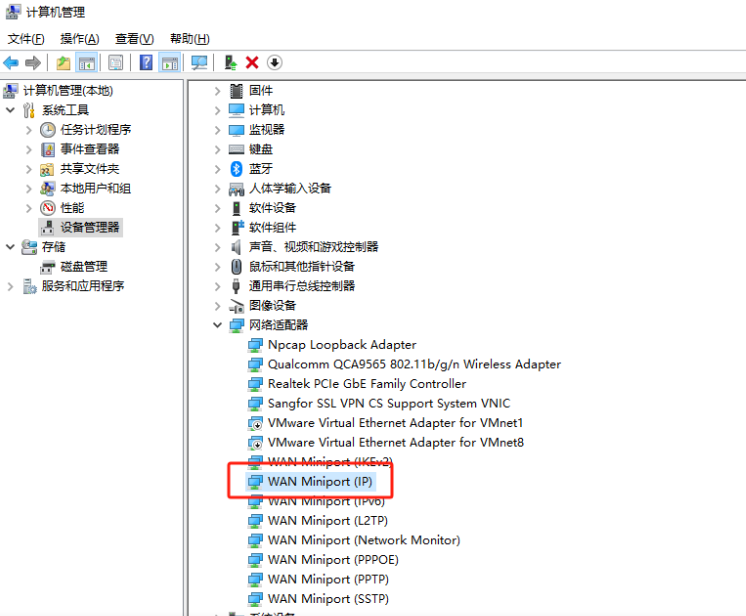
win10自带VPN连接失败,提示“不能建立到远程计算机的连接,你可能需要更改此连接的网络设置”处理方法(亲测有效)

卸载网络适配器-WAN Miniport(IP),卸载完成后重启电脑,然后再连接就可以了

docker相关操作

一、Ddocker常用命令

1.镜像操作命令
1. 查看本地镜像
docker images
2. 拉取镜像(从 Docker 镜像仓库(默认是 Docker Hub)拉取指定的镜像)
docker pull [OPTIONS] NAME[:TAG|@DIGEST]
docker pull nginx:1.23.4
3. 删除本地镜像
docker rmi [OPTIONS] IMAGE [IMAGE...]
docker rmi nginx
4. 构建镜像
docker build [OPTIONS] PATH | URL | -
docker build -t my-nginx:1.0 .
其中,-t 用于指定镜像的标签,. 表示当前目录。
2.容器操作命令
1. 创建并启动容器
  docker run [OPTIONS] IMAGE [COMMAND] [ARG...]
  docker run -d -p 8080:80 nginx
  -d:让容器在后台运行。
  -p:将容器内部的端口映射到主机的端口,格式为 主机端口:容器端口。
2. 查看运行中的容器
	docker ps
    docker ps -a
3. 停止容器
	docker stop [OPTIONS] CONTAINER [CONTAINER...]
    docker stop abc123
4. 启动已停止的容器
	docker start [OPTIONS] CONTAINER [CONTAINER...]
    docker start abc123
5. 重启容器
	docker restart [OPTIONS] CONTAINER [CONTAINER...]
    docker restart abc123
6. 删除容器
	docker rm [OPTIONS] CONTAINER [CONTAINER...]
    docker rm abc123
7. 进入容器
	docker exec -it [CONTAINER] [COMMAND]
    docker exec -it abc123 /bin/bash

二、Docker Registry搭建私有库

# 命令快粘

# 上传前标记镜像
docker tag nginx registry.home.tymas.cn:8000/nginx

# 上传标记镜像
docker push registry.home.tymas.cn:8000/nginx

# 从私有 Docker Registry 下载镜像
docker pull registry.home.tymas.cn:8000/nginx

# 查看私有 Docker Registry 中的镜像
curl https://registry.home.tymas.cn:8000/v2/_catalog

# 查看某个仓库中的所有镜像标签,可以使用以下命令:
https://registry.home.tymas.cn:8000/v2/jenkins/jenkins/tags/list

搭建私有 Docker Registry

1.使用 Docker 官方镜像快速搭建
docker run -d -p 5000:5000 --restart=always --name registry registry:2
  • -d:让容器在后台运行。
  • -p 5000:5000:将容器的 5000 端口映射到宿主机的 5000 端口。
  • –restart=always:设置容器在 Docker 服务启动时自动启动。
  • –name registry:为容器指定名称为 registry。
  • registry:2:使用的是 Docker 官方 Registry 版本 2 的镜像。
2. 配置 Docker 客户端信任私有 Registry(针对 HTTP 访问)

默认情况下,Docker 只允许通过 HTTPS 访问 Registry。如果你的私有 Registry 使用的是 HTTP 协议,需要在 Docker 客户端进行配置以信任该 Registry。
在 /etc/docker/daemon.json 文件中添加以下内容(如果文件不存在则创建)

{
    "insecure-registries": ["your-registry-ip:5000"]
}

将 your-registry-ip 替换为你私有 Registry 所在服务器的 IP 地址。
配置完成后,重启 Docker 服务:

sudo systemctl restart docker

上传镜像到私有 Docker Registry

1. 标记本地镜像

在上传镜像之前,需要给本地镜像添加私有 Registry 的标签。假设你有一个名为 nginx 的本地镜像,要将其上传到私有 Registry:

docker tag nginx your-registry-ip:5000/nginx

这里将 nginx 镜像标记为 your-registry-ip:5000/nginx,表示该镜像将上传到私有 Registry 的 nginx 仓库。

2. 上传镜像

使用 docker push 命令将标记后的镜像上传到私有 Registry:

docker push your-registry-ip:5000/nginx

从私有 Docker Registry 下载镜像

使用 docker pull 命令从私有 Registry 下载镜像:

docker pull your-registry-ip:5000/nginx

查看私有 Docker Registry 中的镜像

可以通过 HTTP 请求查看私有 Registry 中存储的镜像。例如,使用 curl 命令查看所有仓库名称:

curl http://your-registry-ip:5000/v2/_catalog

若要查看某个仓库中的所有镜像标签,可以使用以下命令:

curl http://your-registry-ip:5000/v2/nginx/tags/list

管理私有 Docker Registry

1. 停止和删除 Registry 容器

如果需要停止并删除正在运行的 Registry 容器,可以使用以下命令:

docker stop registry
docker rm registry

2. 持久化存储

为了避免容器删除后镜像数据丢失,可以将 Registry 的数据存储在宿主机的指定目录中。在启动 Registry 容器时,使用 -v 参数进行挂载:

docker run -d -p 5000:5000 --restart=always --name registry -v /myregistry:/var/lib/registry registry:2

这里将宿主机的 /myregistry 目录挂载到容器的 /var/lib/registry 目录,Registry 的镜像数据将存储在 /myregistry 目录下。
CenterOS-7升级低版本的OpenSSH到9.3p2的高版本,解决远程代码执行漏洞(CVE-2023-38408)漏洞

遇到的一些报错解决办法:(这些按照上面的主教程应该不会出现,这是按照其他教程才会出现,但是是有效的解决办法也一并记录)

1.报错内容:
	Operating system: x86_64-whatever-linux2
  	You need Perl 5
  	解决教程:https://blog.csdn.net/qq_44534541/article/details/124667091
2.报错内容:
    crypto/comp/c_zlib.c:35:19: fatal error: zlib.h: No such file or directory
    执行:sudo yum install zlib-devel
3.报错内容:
    Use which C compiler? [cc]  
    ./trygcc:行10: cc: 未找到命令
    Uh-oh, the C compiler 'cc' doesn't seem to be working.
    ./trygcc:行25: gcc: 未找到命令
    ./checkcc:行10: cc: 未找到命令
  	解决方法:yum install gcc
4.报错内容:
	“configure: error: *** working libcrypto not found, check config.log”
    解决方法:https://www.cnblogs.com/wholj/p/10944407.html

额外记录:因为要用到yum,有时候yum是不好使的

更新yum 
1. 备份当前的YUM源配置文件
sudo cp -r /etc/yum.repos.d /etc/yum.repos.d.bak
3. 下载新的YUM源配置文件(以阿里云YUM源为例)
sudo curl -o /etc/yum.repos.d/CentOS-Base.repo http://mirrors.aliyun.com/repo/Centos-7.repo
4. 清理YUM缓存并生成新的缓存
sudo yum clean all
sudo yum makecache

快捷复制

# 安装vim
yum install vim  
# 查看ssh版本
ssh -V
openssl version

二、安装完后因为SELinux安全策略问题可能导致无法连接(安装完成后记得先重新打开一个窗口连接成功在关闭当前,否则可能再也连不上了):

1. 临时解决(不推荐长期使用)
# 可以将 SELinux 设置为 permissive 模式,这样在系统运行期间 SELinux 不会强制执行策略
sudo setenforce 0
# 再次确认是否是 SELinux阻止SSH 相关操作
# 临时允许所有与 SSH 服务相关的操作,以确定是否是 SELinux 策略限制导致的问题。
sudo semanage permissive -a sshd_t
# 移除允许模式
sudo semanage permissive -d sshd_t
2.永久解决

1.创建策略模块文件

vi sshd_custom_refined.te
# 使用文本编辑器创建一个名为 sshd_custom_refined.te 的文件,并添加以下内容:
module sshd_custom_refined 1.0;

require {
    type sshd_t;
    type shadow_t;
    class file { read getattr open };
}

allow sshd_t shadow_t:file { read getattr open };

2.创建策略模块文件

# 如果执行下面出现 -bash: checkmodule: 未找到命令
sudo yum install policycoreutils-python

# 编译策略模块(此命令会对 sshd_custom_refined.te 文件进行语法检查并生成一个中间模块文件)
checkmodule -M -m -o sshd_custom_refined.mod sshd_custom_refined.te

# 打包策略模块(该命令会将中间模块文件打包成最终可加载的策略模块文件 sshd_custom_refined.pp)
semodule_package -o sshd_custom_refined.pp -m sshd_custom_refined.mod
# 加载策略模块
sudo semodule -i sshd_custom_refined.pp

"""下边不是必做步骤""
# 验证策略效果(记得改回强制模式,前面的 临时允许所有与 SSH 服务相关的操作 也关闭掉)
sudo setenforce 1
sudo semanage permissive -d sshd_t

# 移除旧的策略模块(如果已安装)
sudo semodule -r sshd_custom_refined
# 安装新的策略模块
sudo semodule -i sshd_custom_refined.pp
# 确认模块是否已安装(如果执行该命令后没有任何输出,那就说明 sshd_custom_refined 策略模块确实没有安装)
sudo semodule -l | grep sshd_custom_refined

二、升级完成后root会无法登录的解决办法

# 打开 sshd 配置文件
vi /etc/ssh/sshd_config
# 在最后添加如下内容

# 允许 root 用户通过 SSH 远程登录
PermitRootLogin yes
# 启用 SSH 公钥认证方式
PubkeyAuthentication yes
# 启用 SSH 密码认证方式
PasswordAuthentication yes

# 或者添加新的普通用户(myUsername替换成用户名,myPassword替换成密码)
sudo useradd myUsername
sudo passwd myPassword

三、安装openssl头库文件不一致的问题

# 当执行openssl version 提示(正常不应该显示Library)
OpenSSL 1.1.1u  30 May 2023 (Library: OpenSSL 1.1.1o  3 May 2022)
#解决办法
#修改 /etc/profile 文件(针对所有用户)
#  1. 打开 /etc/profile 文件
sudo vim /etc/profile
#  2. 在文件末尾添加以下两行:
export LD_LIBRARY_PATH=/usr/local/openssl/lib:$LD_LIBRARY_PATH
export PATH=/usr/local/openssl/bin:$PATH
#  3. 配置立即生效,执行以下命令
source /etc/profile

三、后续又升级到了9.8p1,只需要下载的地址换成9.8p1就行了

wget  https://cdn.openbsd.org/pub/OpenBSD/OpenSSH/portable/openssh-9.8p1.tar.gz

yum源失败的解决办法

1.使用curl命令,更新源地址

curl -o /etc/yum.repos.d/CentOS-Base.repo  http://mirrors.aliyun.com/repo/Centos-7.repo

2.可能DNS配置出错

#打开DNS域名解析的配置文件
vi /etc/resolv.conf
# resolv.conf 加入
nameserver 8.8.8.8
# 重启网络服务
/etc/init.d/network restart
# 重新yum安装

原文参考链接: https://blog.csdn.net/zhuan_long/article/details/104733799

原文参考链接: https://blog.csdn.net/qq_70162611/article/details/141968913

conda命令

# 查看conda虚拟环境列表		
conda env list
# 删除虚拟环境	
conda remove -n my_first_env --all
# 创建虚拟环境	
conda create --name my_first_env python=3.6
# 进入虚拟环境	
conda activate my_first_env

宝塔面板PHP7.2安装Oracle扩展,TP5连接Oracle数据库

第一部分 宝塔面板PHP7.2安装Oracle扩展

1.安装InstantClient

下载打包好的文件,或者到官网下载。(注意要下载basic和devel,用来编译oci和pdo_oci。我这里下载的是rpm,方便安装。我这里下载的是18.3)

将下载的文件放在/usr/lib/oracle/,然后运行命令安装.
rpm -ivh /usr/lib/oracle/oracle-instantclient18.3-*

然后打开 /etc/profile
vi /etc/profile

在文件底部增加(注意版本和文件路径)

export ORACLE_HOME=/usr/lib/oracle/18.3/client64
export PATH=$PATH:$ORACLE_HOME/bin
export LD_LIBRARY_PATH=$LD_LIBRARY_PATH:/usr/lib/oracle/18.3/client64/lib
export C_INCLUDE_PATH=$C_INCLUDE_PATH:/usr/include/oracle/18.3/client64
export NLS_LANG='SIMPLIFIED CHINESE_CHINA.ZHS16GBK'

添加后的样子

保存后在终端运行  source /etc/profile,让环境变量立即生效。

2.安装OCI8

这里要注意先将php7.1的配置项【禁用函数】中删除popen、readlink两个函数。然后终端中运行

pecl channel-update pecl.php.net

/www/server/php/72/bin/pecl install oci8-2.2.0 --with-php-config=/www/server/php/72/bin/php-config

# 执行过程中可能让输入,输入下
shared,instantclient,/usr/lib/oracle/18.3/client64/lib --with-php-config=/www/server/php/72/bin/php-config

3.安装PDO_OCI

因为版本问题不能使用pecl安装pdo_oci,所以自己编译。

下载php源码。将源码包中的压缩包中的ext/pdo_oci文件夹上传到/www/server/php/72/include/php/ext/。

然后将php.ini配置文件中[oci8]下面的oci8.privileged_connect,前面分号去掉,Off修改为On,后面的配置项自己依据实际情况去配置。然后保存重启或重载php服务。

然后终端运行

cd /www/server/php/72/include/php/ext/pdo_oci
/www/server/php/72/bin/phpize
./configure --with-php-config=/www/server/php/72/bin/php-config --with-oci8=shared,instantclient,/usr/lib/oracle/18.3/client64/lib
make && make install

4.PHP-FPM配置

编辑/www/server/php/72/etc/php-fpm.conf,将下面两行代码加进去。

env[LD_LIBRARY_PATH] = /usr/lib/oracle/18.3/client64/lib
env[ORACLE_HOME] = /usr/lib/oracle/18.3/client64/lib

运行成功后,再到php.ini文件中检查是否有两个so,没有的话要记得添加。

#/www/server/php/72/etc/php.ini
extension="oci8.so"
extension="pdo_oci.so"

第二部分 TP5连接oracle(本来需要装东西,但是这里突然直接好使了??不管了)

database局部配置

	// 数据库类型
    'type'            => 'oracle',
    // 服务器地址
    'hostname'        => '127.0.0.1',
    // 数据库名
    'database'        => 'ORCL',
    // 用户名
    'username'        => 'TEST',
    // 密码
    'password'        => 'test',
    // 端口
    'hostport'        => '1521',

原文链接:https://blog.csdn.net/pmlptf/article/details/126668688

Angular学习记录

// 安装脚手架
npm install -g angular-cli
// 新建Angualr项目
ng new angualrDemo --skip-install
注:如果按照官网的教程只用输入 ng new 项目名 即可,但是这种情况下它会默认使用npm帮我们创建项目并且安装各种依赖,非常耗时间,所以我们后面加上-- skip-install跳过安装依赖的过程.
启动项目
ng serve 默认启动在端口4200
ng serve – open,启动并打开浏览器
ng serve --port 端口
// 终结