安装deepseek

1.安装ollama

1
# 下载ollama
curl -fsSL https://ollama.com/install.sh | sh
# 下载模型
ollama run deepseek-r1:1.5b
ollama run deepseek-r1:7b
ollama run deepseek-r1:8b

2.设置ollama监听

# 1. 编辑 ollama.service
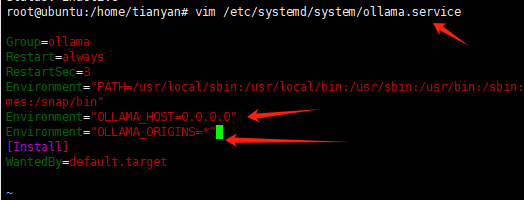
vim /etc/systemd/system/ollama.service
# 2.在 [Service] 部分,Environment下面添加:
Environment="OLLAMA_HOST=0.0.0.0"
Environment="OLLAMA_ORIGINS=*"
# 3.重新加载 systemd 并重启 Ollama:
systemctl daemon-reload
systemctl restart ollama

其他相关命令:

# 查看 Ollama 运行状态:
systemctl status ollama
# 查看显存占用:
nvidia-smi
apt-get install nvtop -y
nvtop

Docker安装ipsec

docker run --name ipsec-vpn-server  --env-file /root/vpn.env --restart=always -v ikev2-vpn-data:/etc/ipsec.d \-v /lib/modules:/lib/modules:ro -p 500:500/udp -p 4500:4500/udp -d --privileged registry.home.tymas.cn:8000/hwdsl2/ipsec-vpn-server:latest

.env 配置文件,放在root用户根目录下 /root/vpn.env

下面高亮部分是要自己设置的

# Note: All the variables to this image are optional.
# See README for more information.
# To use, uncomment and replace with your own values.

# Define IPsec PSK, VPN username and password
# - DO NOT put "" or '' around values, or add space around =
# - DO NOT use these special characters within values: \ " '
VPN_IPSEC_PSK=aaaaaaaaaa
VPN_USER=aaaa
VPN_PASSWORD=aaaa


# Define additional VPN users
# - DO NOT put "" or '' around values, or add space around =
# - DO NOT use these special characters within values: \ " '
# - Usernames and passwords must be separated by spaces
# VPN_ADDL_USERS=additional_username_1 additional_username_2
# VPN_ADDL_PASSWORDS=additional_password_1 additional_password_2

# Use a DNS name for the VPN server
# - The DNS name must be a fully qualified domain name (FQDN)
VPN_DNS_NAME=aaa.com

# Specify a name for the first IKEv2 client
# - Use one word only, no special characters except '-' and '_'
# - The default is 'vpnclient' if not specified
# VPN_CLIENT_NAME=your_client_name

# Use alternative DNS servers
# - By default, clients are set to use Google Public DNS
# - Example below shows Cloudflare's DNS service
VPN_DNS_SRV1=223.5.5.5
VPN_DNS_SRV2=114.114.114.114

# Protect IKEv2 client config files using a password
# - By default, no password is required when importing IKEv2 client configuration
# - Uncomment if you want to protect these files using a random password
# VPN_PROTECT_CONFIG=yes

Windows 8, 10 和 11+ 用户可以自动导入 IKEv2 配置:

  1. 将生成的 .p12 文件安全地传送到你的计算机。
  2. 右键单击 ikev2_config_import.cmd 并保存这个辅助脚本到与 .p12 文件 相同的文件夹
  3. 右键单击保存的脚本,选择 属性。单击对话框下方的 解除锁定,然后单击 确定
  4. 右键单击保存的脚本,选择 以管理员身份运行 并按提示操作。

如果在连接过程中遇到错误,请参见 故障排除

这里是上面自动化设置连接的脚本,下载不到可以把这个保存成ikev2_config_import.cmd

@echo off
:: IKEv2 Configuration Import Helper Script for Windows 8, 10 and 11
:: Copyright (C) 2022 Lin Song <linsongui@gmail.com>
:: This work is licensed under the Creative Commons Attribution-ShareAlike 3.0
:: Unported License: http://creativecommons.org/licenses/by-sa/3.0/
:: Attribution required: please include my name in any derivative and let me
:: know how you have improved it!

setlocal DisableDelayedExpansion
set "SPath=%SystemRoot%\System32"
if exist "%SystemRoot%\Sysnative\reg.exe" (set "SPath=%SystemRoot%\Sysnative")
set "Path=%SPath%;%SystemRoot%;%SPath%\Wbem;%SPath%\WindowsPowerShell\v1.0\"
set "_err====== ERROR ====="
set "_work=%~dp0"
if "%_work:~-1%"=="\" set "_work=%_work:~0,-1%"

for /f "tokens=4-5 delims=. " %%i in ('ver') do set version=%%i.%%j
if "%version%" == "10.0" goto :Check_Admin
if "%version%" == "6.3" goto :Check_Admin
if "%version%" == "6.2" goto :Check_Admin
goto :E_Win

:Check_Admin
reg query HKU\S-1-5-19 >nul 2>&1 || goto :E_Admin

where certutil >nul 2>&1
if %errorlevel% neq 0 goto :E_Cu
where powershell >nul 2>&1
if %errorlevel% neq 0 goto :E_Ps

title IKEv2 Configuration Import Helper Script
setlocal EnableDelayedExpansion
cd /d "!_work!"
@cls
echo ===================================================================
echo Welcome^^! Use this helper script to import an IKEv2 configuration
echo into a PC running Windows 8, 10 or 11.
echo For more details, see https://vpnsetup.net/ikev2
echo.
echo Before continuing, you must put the .p12 file you transferred from
echo the VPN server in the *same folder* as this script.
echo ===================================================================

set client_name_gen=
for /F "eol=| delims=" %%f in ('dir "*.p12" /A-D /B /O-D /TW 2^>nul') do (
  set "p12_latest=%%f"
  set "client_name_gen=!p12_latest:.p12=!"
  goto :Enter_Client_Name
)

:Enter_Client_Name
echo.
echo Enter the name of the IKEv2 VPN client to import.
echo Note: This is the same as the .p12 filename without extension.
set client_name=
set p12_file=
if defined client_name_gen (
  echo To accept the suggested client name, press Enter.
  set /p client_name="VPN client name: [%client_name_gen%] "
  if not defined client_name set "client_name=%client_name_gen%"
) else (
  set /p client_name="VPN client name: "
  if not defined client_name goto :Abort
)
set "client_name=%client_name:"=%"
set "client_name=%client_name: =%"
set "p12_file=%_work%\%client_name%.p12"
if not exist "!p12_file!" (
  echo.
  echo ERROR: File "!p12_file!" not found.
  echo You must put the .p12 file you transferred from the VPN server
  echo in the *same folder* as this script.
  goto :Enter_Client_Name
)

echo.
echo Enter the IP address (or DNS name) of the VPN server.
echo Note: This must exactly match the VPN server address in the output
echo of the IKEv2 helper script on your server.
set server_addr=
set /p server_addr="VPN server address: "
if not defined server_addr goto :Abort
set "server_addr=%server_addr:"=%"
set "server_addr=%server_addr: =%"

set "conn_name_gen=IKEv2 VPN %server_addr%"
powershell -command "Get-VpnConnection -Name '%conn_name_gen%'" >nul 2>&1
if !errorlevel! neq 0 (
  goto :Enter_Conn_Name
)
set "conn_name_gen=IKEv2 VPN 2 %server_addr%"
powershell -command "Get-VpnConnection -Name '%conn_name_gen%'" >nul 2>&1
if !errorlevel! neq 0 (
  goto :Enter_Conn_Name
)
set "conn_name_gen=IKEv2 VPN 3 %server_addr%"
powershell -command "Get-VpnConnection -Name '%conn_name_gen%'" >nul 2>&1
if !errorlevel! equ 0 (
  set conn_name_gen=
)

:Enter_Conn_Name
echo.
echo Provide a name for the new IKEv2 connection.
set conn_name=
if defined conn_name_gen (
  echo To accept the suggested connection name, press Enter.
  set /p conn_name="IKEv2 connection name: [%conn_name_gen%] "
  if not defined conn_name set "conn_name=%conn_name_gen%"
) else (
  set /p conn_name="IKEv2 connection name: "
  if not defined conn_name goto :Abort
)
set "conn_name=%conn_name:"=%"
powershell -command "Get-VpnConnection -Name '%conn_name%'" >nul 2>&1
if !errorlevel! equ 0 (
  echo.
  echo ERROR: A connection with this name already exists.
  goto :Enter_Conn_Name
)

echo.
echo Importing .p12 file...
certutil -f -p "" -importpfx "%p12_file%" NoExport >nul 2>&1
if !errorlevel! equ 0 goto :Create_Conn
echo When prompted, enter the password for client config files, which can be found
echo in the output of the IKEv2 helper script on your server.
:Import_P12
certutil -f -importpfx "%p12_file%" NoExport
if !errorlevel! neq 0 goto :Import_P12

:Create_Conn
echo.
echo Creating VPN connection...
powershell -command "Add-VpnConnection -ServerAddress '%server_addr%' -Name '%conn_name%' -TunnelType IKEv2 -AuthenticationMethod MachineCertificate -EncryptionLevel Required -PassThru"
if !errorlevel! neq 0 (
  echo ERROR: Could not create the IKEv2 VPN connection.
  goto :Done
)

echo Setting IPsec configuration...
powershell -command "Set-VpnConnectionIPsecConfiguration -ConnectionName '%conn_name%' -AuthenticationTransformConstants GCMAES128 -CipherTransformConstants GCMAES128 -EncryptionMethod AES256 -IntegrityCheckMethod SHA256 -PfsGroup None -DHGroup Group14 -PassThru -Force"
if !errorlevel! neq 0 (
  echo ERROR: Could not set IPsec configuration for the IKEv2 VPN connection.
  goto :Done
)

echo IKEv2 configuration successfully imported^^!
echo To connect to the VPN, click on the wireless/network icon in your system tray,
echo select the "%conn_name%" VPN entry, and click Connect.
goto :Done

:E_Admin
echo %_err%
echo This script requires administrator privileges.
echo Right-click on the script and select 'Run as administrator'.
goto :Done

:E_Win
echo %_err%
echo This script requires Windows 8, 10 or 11.
echo Windows 7 users can manually import IKEv2 configuration. See https://vpnsetup.net/ikev2
goto :Done

:E_Cu
echo %_err%
echo This script requires 'certutil', which is not detected.
goto :Done

:E_Ps
echo %_err%
echo This script requires 'powershell', which is not detected.
goto :Done

:Abort
echo.
echo Abort. No changes were made.

:Done
echo.
echo Press any key to exit.
pause >nul
goto :eof

下面是一些错误的解决办法

win10自带VPN连接失败,提示“不能建立到远程计算机的连接,你可能需要更改此连接的网络设置”处理方法(亲测有效)

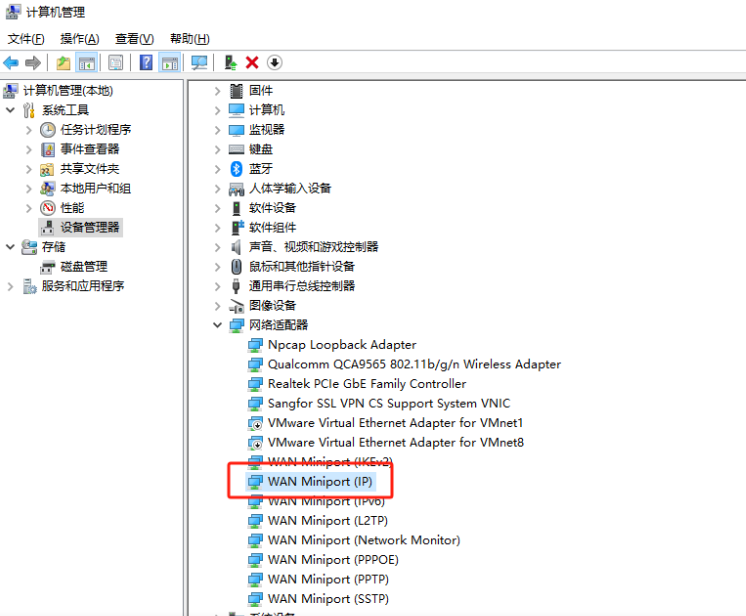
卸载网络适配器-WAN Miniport(IP),卸载完成后重启电脑,然后再连接就可以了

docker相关操作

一、Ddocker常用命令

1.镜像操作命令
1. 查看本地镜像
docker images
2. 拉取镜像(从 Docker 镜像仓库(默认是 Docker Hub)拉取指定的镜像)
docker pull [OPTIONS] NAME[:TAG|@DIGEST]
docker pull nginx:1.23.4
3. 删除本地镜像
docker rmi [OPTIONS] IMAGE [IMAGE...]
docker rmi nginx
4. 构建镜像
docker build [OPTIONS] PATH | URL | -
docker build -t my-nginx:1.0 .
其中,-t 用于指定镜像的标签,. 表示当前目录。
2.容器操作命令
1. 创建并启动容器
  docker run [OPTIONS] IMAGE [COMMAND] [ARG...]
  docker run -d -p 8080:80 nginx
  -d:让容器在后台运行。
  -p:将容器内部的端口映射到主机的端口,格式为 主机端口:容器端口。
2. 查看运行中的容器
	docker ps
    docker ps -a
3. 停止容器
	docker stop [OPTIONS] CONTAINER [CONTAINER...]
    docker stop abc123
4. 启动已停止的容器
	docker start [OPTIONS] CONTAINER [CONTAINER...]
    docker start abc123
5. 重启容器
	docker restart [OPTIONS] CONTAINER [CONTAINER...]
    docker restart abc123
6. 删除容器
	docker rm [OPTIONS] CONTAINER [CONTAINER...]
    docker rm abc123
7. 进入容器
	docker exec -it [CONTAINER] [COMMAND]
    docker exec -it abc123 /bin/bash

二、Docker Registry搭建私有库

# 命令快粘

# 上传前标记镜像
docker tag nginx registry.home.tymas.cn:8000/nginx

# 上传标记镜像
docker push registry.home.tymas.cn:8000/nginx

# 从私有 Docker Registry 下载镜像
docker pull registry.home.tymas.cn:8000/nginx

# 查看私有 Docker Registry 中的镜像
curl https://registry.home.tymas.cn:8000/v2/_catalog

# 查看某个仓库中的所有镜像标签,可以使用以下命令:
https://registry.home.tymas.cn:8000/v2/jenkins/jenkins/tags/list

搭建私有 Docker Registry

1.使用 Docker 官方镜像快速搭建
docker run -d -p 5000:5000 --restart=always --name registry registry:2
  • -d:让容器在后台运行。
  • -p 5000:5000:将容器的 5000 端口映射到宿主机的 5000 端口。
  • –restart=always:设置容器在 Docker 服务启动时自动启动。
  • –name registry:为容器指定名称为 registry。
  • registry:2:使用的是 Docker 官方 Registry 版本 2 的镜像。
2. 配置 Docker 客户端信任私有 Registry(针对 HTTP 访问)

默认情况下,Docker 只允许通过 HTTPS 访问 Registry。如果你的私有 Registry 使用的是 HTTP 协议,需要在 Docker 客户端进行配置以信任该 Registry。
在 /etc/docker/daemon.json 文件中添加以下内容(如果文件不存在则创建)

{
    "insecure-registries": ["your-registry-ip:5000"]
}

将 your-registry-ip 替换为你私有 Registry 所在服务器的 IP 地址。
配置完成后,重启 Docker 服务:

sudo systemctl restart docker

上传镜像到私有 Docker Registry

1. 标记本地镜像

在上传镜像之前,需要给本地镜像添加私有 Registry 的标签。假设你有一个名为 nginx 的本地镜像,要将其上传到私有 Registry:

docker tag nginx your-registry-ip:5000/nginx

这里将 nginx 镜像标记为 your-registry-ip:5000/nginx,表示该镜像将上传到私有 Registry 的 nginx 仓库。

2. 上传镜像

使用 docker push 命令将标记后的镜像上传到私有 Registry:

docker push your-registry-ip:5000/nginx

从私有 Docker Registry 下载镜像

使用 docker pull 命令从私有 Registry 下载镜像:

docker pull your-registry-ip:5000/nginx

查看私有 Docker Registry 中的镜像

可以通过 HTTP 请求查看私有 Registry 中存储的镜像。例如,使用 curl 命令查看所有仓库名称:

curl http://your-registry-ip:5000/v2/_catalog

若要查看某个仓库中的所有镜像标签,可以使用以下命令:

curl http://your-registry-ip:5000/v2/nginx/tags/list

管理私有 Docker Registry

1. 停止和删除 Registry 容器

如果需要停止并删除正在运行的 Registry 容器,可以使用以下命令:

docker stop registry
docker rm registry

2. 持久化存储

为了避免容器删除后镜像数据丢失,可以将 Registry 的数据存储在宿主机的指定目录中。在启动 Registry 容器时,使用 -v 参数进行挂载:

docker run -d -p 5000:5000 --restart=always --name registry -v /myregistry:/var/lib/registry registry:2

这里将宿主机的 /myregistry 目录挂载到容器的 /var/lib/registry 目录,Registry 的镜像数据将存储在 /myregistry 目录下。
CenterOS-7升级低版本的OpenSSH到9.3p2的高版本,解决远程代码执行漏洞(CVE-2023-38408)漏洞

遇到的一些报错解决办法:(这些按照上面的主教程应该不会出现,这是按照其他教程才会出现,但是是有效的解决办法也一并记录)

1.报错内容:
	Operating system: x86_64-whatever-linux2
  	You need Perl 5
  	解决教程:https://blog.csdn.net/qq_44534541/article/details/124667091
2.报错内容:
    crypto/comp/c_zlib.c:35:19: fatal error: zlib.h: No such file or directory
    执行:sudo yum install zlib-devel
3.报错内容:
    Use which C compiler? [cc]  
    ./trygcc:行10: cc: 未找到命令
    Uh-oh, the C compiler 'cc' doesn't seem to be working.
    ./trygcc:行25: gcc: 未找到命令
    ./checkcc:行10: cc: 未找到命令
  	解决方法:yum install gcc
4.报错内容:
	“configure: error: *** working libcrypto not found, check config.log”
    解决方法:https://www.cnblogs.com/wholj/p/10944407.html

额外记录:因为要用到yum,有时候yum是不好使的

更新yum 
1. 备份当前的YUM源配置文件
sudo cp -r /etc/yum.repos.d /etc/yum.repos.d.bak
3. 下载新的YUM源配置文件(以阿里云YUM源为例)
sudo curl -o /etc/yum.repos.d/CentOS-Base.repo http://mirrors.aliyun.com/repo/Centos-7.repo
4. 清理YUM缓存并生成新的缓存
sudo yum clean all
sudo yum makecache

快捷复制

# 安装vim
yum install vim  
# 查看ssh版本
ssh -V
openssl version

二、安装完后因为SELinux安全策略问题可能导致无法连接(安装完成后记得先重新打开一个窗口连接成功在关闭当前,否则可能再也连不上了):

1. 临时解决(不推荐长期使用)
# 可以将 SELinux 设置为 permissive 模式,这样在系统运行期间 SELinux 不会强制执行策略
sudo setenforce 0
# 再次确认是否是 SELinux阻止SSH 相关操作
# 临时允许所有与 SSH 服务相关的操作,以确定是否是 SELinux 策略限制导致的问题。
sudo semanage permissive -a sshd_t
# 移除允许模式
sudo semanage permissive -d sshd_t
2.永久解决

1.创建策略模块文件

vi sshd_custom_refined.te
# 使用文本编辑器创建一个名为 sshd_custom_refined.te 的文件,并添加以下内容:
module sshd_custom_refined 1.0;

require {
    type sshd_t;
    type shadow_t;
    class file { read getattr open };
}

allow sshd_t shadow_t:file { read getattr open };

2.创建策略模块文件

# 如果执行下面出现 -bash: checkmodule: 未找到命令
sudo yum install policycoreutils-python

# 编译策略模块(此命令会对 sshd_custom_refined.te 文件进行语法检查并生成一个中间模块文件)
checkmodule -M -m -o sshd_custom_refined.mod sshd_custom_refined.te

# 打包策略模块(该命令会将中间模块文件打包成最终可加载的策略模块文件 sshd_custom_refined.pp)
semodule_package -o sshd_custom_refined.pp -m sshd_custom_refined.mod
# 加载策略模块
sudo semodule -i sshd_custom_refined.pp

"""下边不是必做步骤""
# 验证策略效果(记得改回强制模式,前面的 临时允许所有与 SSH 服务相关的操作 也关闭掉)
sudo setenforce 1
sudo semanage permissive -d sshd_t

# 移除旧的策略模块(如果已安装)
sudo semodule -r sshd_custom_refined
# 安装新的策略模块
sudo semodule -i sshd_custom_refined.pp
# 确认模块是否已安装(如果执行该命令后没有任何输出,那就说明 sshd_custom_refined 策略模块确实没有安装)
sudo semodule -l | grep sshd_custom_refined

二、升级完成后root会无法登录的解决办法

# 打开 sshd 配置文件
vi /etc/ssh/sshd_config
# 在最后添加如下内容

# 允许 root 用户通过 SSH 远程登录
PermitRootLogin yes
# 启用 SSH 公钥认证方式
PubkeyAuthentication yes
# 启用 SSH 密码认证方式
PasswordAuthentication yes

# 或者添加新的普通用户(myUsername替换成用户名,myPassword替换成密码)
sudo useradd myUsername
sudo passwd myPassword

三、安装openssl头库文件不一致的问题

# 当执行openssl version 提示(正常不应该显示Library)
OpenSSL 1.1.1u  30 May 2023 (Library: OpenSSL 1.1.1o  3 May 2022)
#解决办法
#修改 /etc/profile 文件(针对所有用户)
#  1. 打开 /etc/profile 文件
sudo vim /etc/profile
#  2. 在文件末尾添加以下两行:
export LD_LIBRARY_PATH=/usr/local/openssl/lib:$LD_LIBRARY_PATH
export PATH=/usr/local/openssl/bin:$PATH
#  3. 配置立即生效,执行以下命令
source /etc/profile

三、后续又升级到了9.8p1,只需要下载的地址换成9.8p1就行了

wget  https://cdn.openbsd.org/pub/OpenBSD/OpenSSH/portable/openssh-9.8p1.tar.gz

宝塔面板使用WebHook配合gogs搭建钩子 Git push上传自动推送到服务器

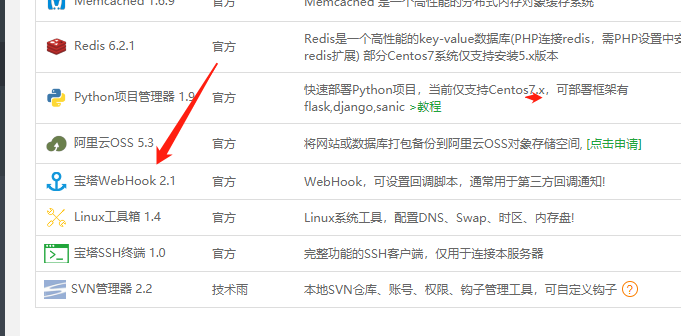
第一步宝塔软件商店安装webhook

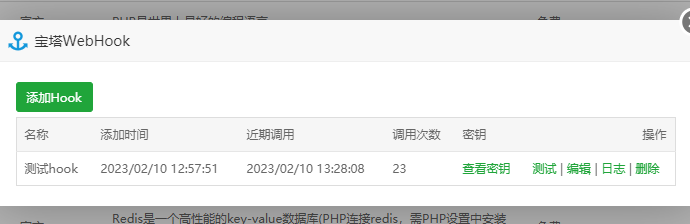
第二步 点击webhook设置添加脚本

脚本内容

#!/bin/bash

echo ""
#输出当前时间
date --date='0 days ago' "+%Y-%m-%d %H:%M:%S"
echo "开始"
#判断宝塔WebHook参数是否存在
if [ ! -n "china" ];
then 
          echo "param参数错误"
          echo "End"
          exit
fi
#git项目路径
gitPath="/www/wwwroot/$1"

#git 网址
gitHttp="git@gitee.com:tyaa/test-hook.git"
echo "Web站点路径:$gitPath"
#判断项目路径是否存在
if [ -d "$gitPath" ]; then
cd $gitPath
#判断是否存在git目录
if [ ! -d ".git" ]; then
echo "在该目录下克隆 git"
sudo git clone $gitHttp .
fi
echo "拉取最新的项目文件"
#sudo git reset --hard origin/master
sudo git pull
echo "设置目录权限"
sudo chown -R www:www $gitPath
echo "End1"
exit
else
echo "该项目路径不存在"
echo "新建项目目录"
mkdir $gitPath
cd $gitPath
#判断是否存在git目录
if [ ! -d ".git" ]; then
echo "在该目录下克隆 git"
sudo git clone $gitHttp gittemp
sudo mv gittemp/.git .
sudo rm -rf gittemp
fi
echo "拉取最新的项目文件"
#sudo git reset --hard origin/master
sudo git pull
echo "设置目录权限"
sudo chown -R www:www $gitPath
echo "End2"
exit
fi 

文件夹最好是空的

安卓模拟器adb操作

 1) 发送文本
        语法:input text <string>
        <string>:文本内容
        示例:input text "www.xyaz.cn"  #模拟输入 (不支持中文)  

2) 按键
        语法:input keyevent [--longpress] <键值>
        [--longpress]:长按
        示例:input keyevent 3  #模拟点击Home键
3) 点击
        语法:input tap <x> <y>
        <x> <y>:坐标
        示例:input tap 500 200  #模拟点击坐标(500, 200)的点
3) 点击
        语法:input tap <x> <y>
        <x> <y>:坐标
        示例:input tap 500 200  #模拟点击坐标(500, 200)的点
4) 划动
        语法:input swipe <x1> <y1> <x2> <y2> [duration(ms)]
        <x1> <y1>:起点坐标
        <x2> <y2>:终点坐标
        [duration]:持续时间
        示例:input swipe 200 200 300 300  #模拟滑动 从起点坐标(200, 200)划动到终点(300, 300)

获取app的包名和activity名称
(1)adb logcat | findstr START
然后点击app
CMD界面,cmp= 后面的值就是 包名/activity名称
例如: cmp=com.shanjian.originaldesign/.activity.other.Activity_In

am start -n com.skymobi.mrpsanguo/com.skymobi.moposns.MoposnsLogoActivity

am start -n com.com.ziyong/com.cyjh.elfin.activity.SplashActivity

vue 八大生命周期

  1. beforeCreate(创建前)
  2. created (创建后)
  3. beforeMount (载入前)
  4. mounted (载入后)
  5. beforeUpdate (更新前)
  6. updated (更新后)
  7. beforeDestroy( 销毁前)
  8. destroyed (销毁后)

Vue生命周期函数就是vue实例在某一个时间点会自动执行的函数

当Vue对象创建之前触发的函数(beforeCreate)

Vue对象创建完成触发的函数(Created)

当Vue对象开始挂载数据的时候触发的函数(beforeMount)

当Vue对象挂载数据的完成的时候触发的函数(Mounted)

Vue对象中的data数据发生改变之前触发的函数 (beforeUpdate)

Vue对象中的data数据发生改变完成触发的函数(Updated)

Vue对象销毁之前触发的函数 (beforeDestroy)

Vue对象销毁完成触发的函数(Destroy)

openid和unionid的区别

1、微信openid和unionid长度是不一样的

openid=28,unionid=29

2、openid同一用户同一应用唯一,unionid同一用户不同应用唯一。

这里的不同应用是指在同一微信开发平台下的不同应用

为了识别用户,每个用户针对每个公众号会产生一个安全的openid。

如果需要在多公众号、移动应用之间做用户共通,则需要前往微信开放平台,将这些公众号和应用绑定到一个开放平台账号下,绑定后,一个用户虽然对多个公众号和应用有多个不同的openid,但他对所有这些同一开放平台账号下的公众号和应用,只有一个unionid。一个微信开放平台只可以绑定10个公众号。

3、对于在pc端和客户端

我们在使用微信网页版本的时候,生成微信二维码用户扫描登录,此时获取的openid和微信客户端的openid是不一样的,但是unionId是一样的。这是因为,网页二维码扫描登录是网站应用,客户端是公众号,两者属于不同应用。

4、获取用户的openid是无需用户同意的,获取用户的基本信息则需要用户同意

原文链接https://www.jianshu.com/p/6777eb001d9f

谷歌浏览器(chrome)允许跨域设置的方法

Windows

直接创建chrome浏览器的快捷方式,在属性中找到打开路径,在…chrome.exe后面加上

--args --disable-web-security --user-data-dir="C:/ChromeDevSession"

Mac

在终端中执行命令

open -a 'Google Chrome' --args --disable-web-security --user-data-dir=/tmp/chrome_dev_test

原文链接https://junyiseo.com/qita/792.html

360浏览器允许跨域设置的方法

 --disable-web-security --user-data-dir="D:\Program Files\360\360se6\User Data"